Using the Admin Console
The admin console is a web interface served by the RaisinDB server itself. It covers content, schema, access control, branches, functions, packages, integrations and server operations.
Accessing the console
The console is served at /admin on the server's HTTP port:
http://localhost:8080/admin
Sign in with an admin user. On a fresh dev-mode server, raisindb server start
prints the generated admin password once on first start. After signing in you
land on the repository list; pick a repository to open its sidebar.
Repository sections
Content
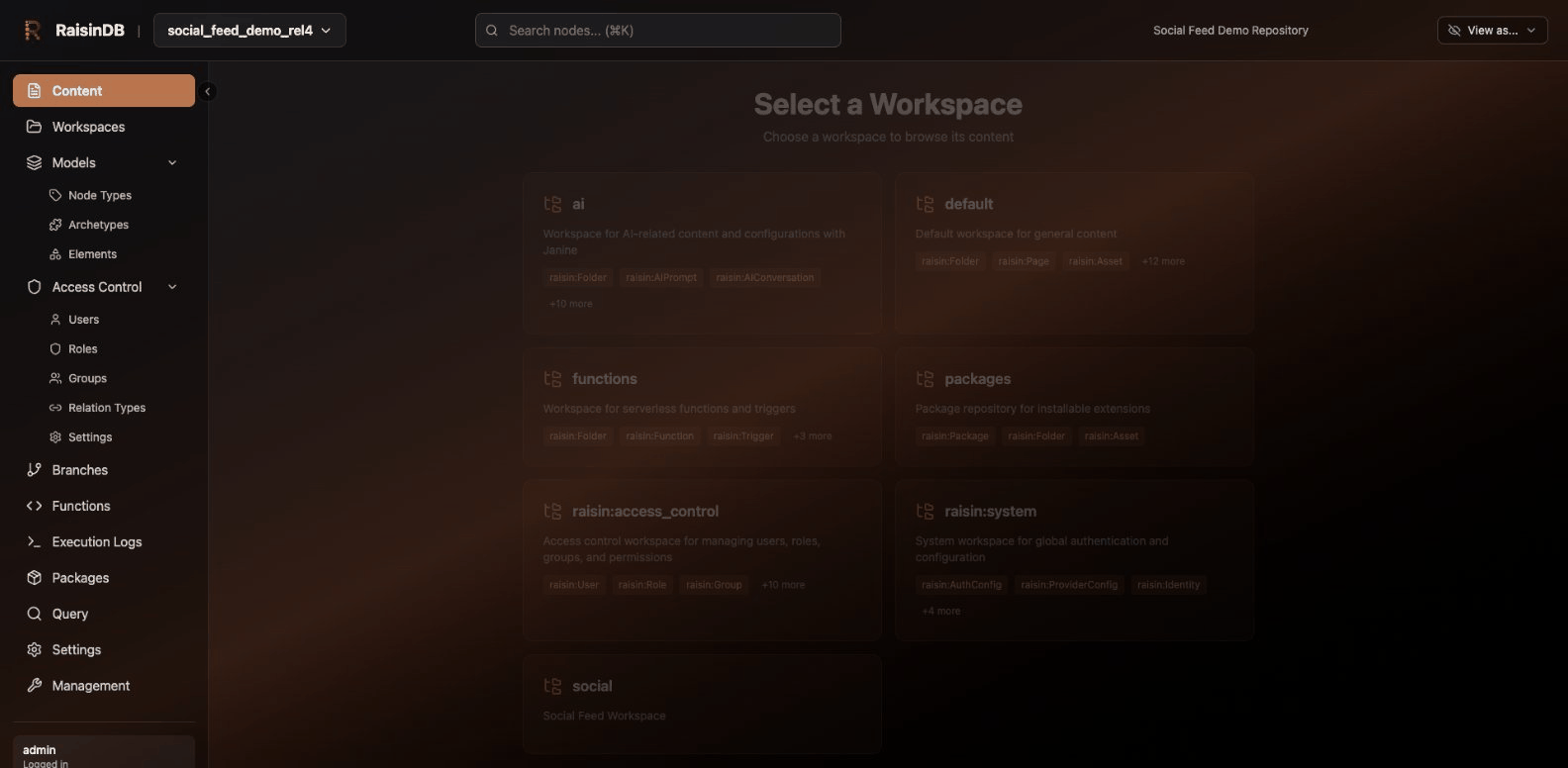
The Content section starts with a workspace selector listing every workspace in the repository.
Inside a workspace, the content explorer shows the node tree for the selected branch, with search, a node editor driven by the node's type, create, move, copy and delete actions, a language switcher for translations, a revision browser to view and compare earlier revisions of a node, and a commit dialog.
Workspaces
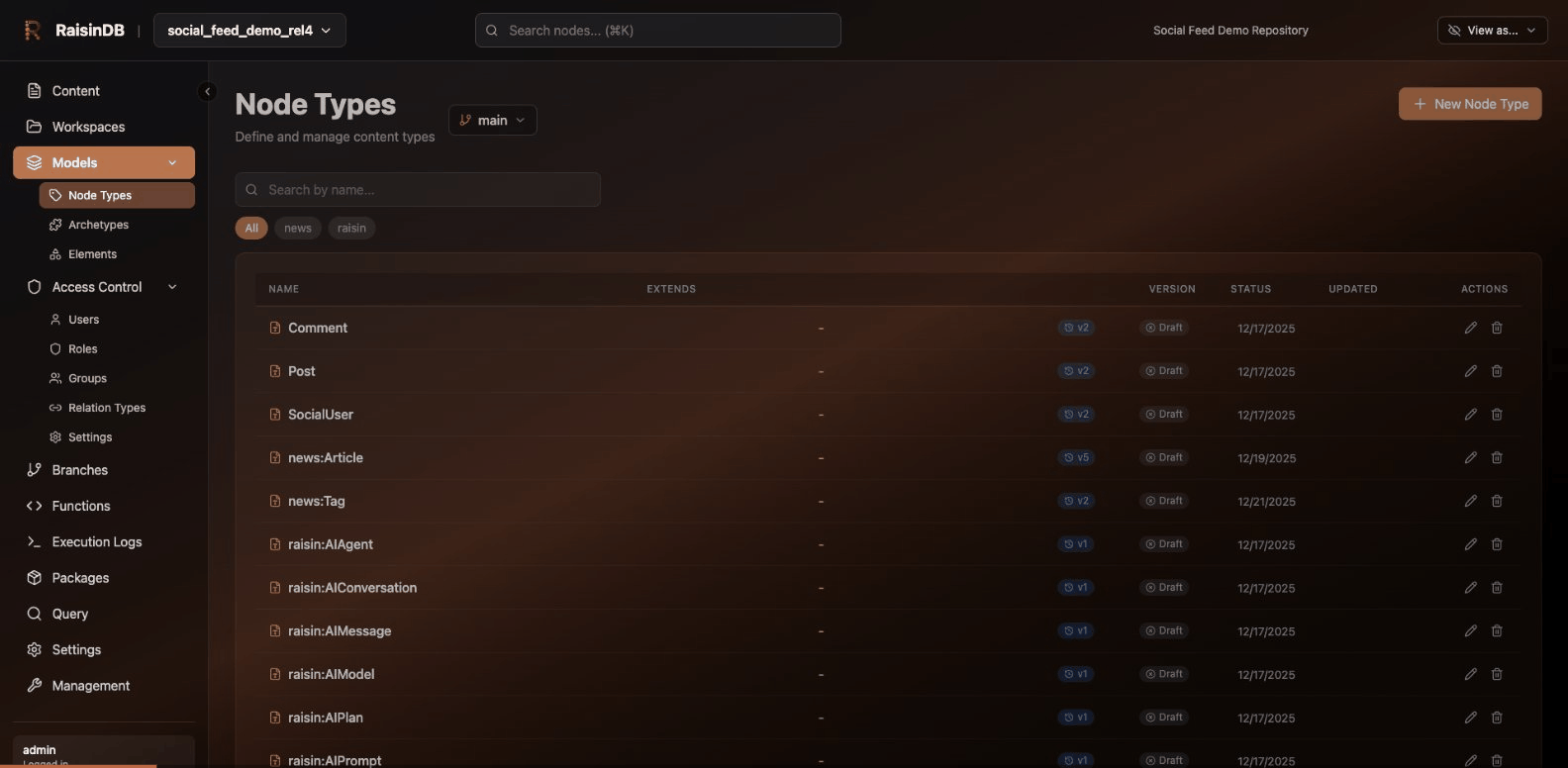
Create workspaces, choosing their allowed node types, and open a workspace's detail view to browse and manage the nodes in it.
Models
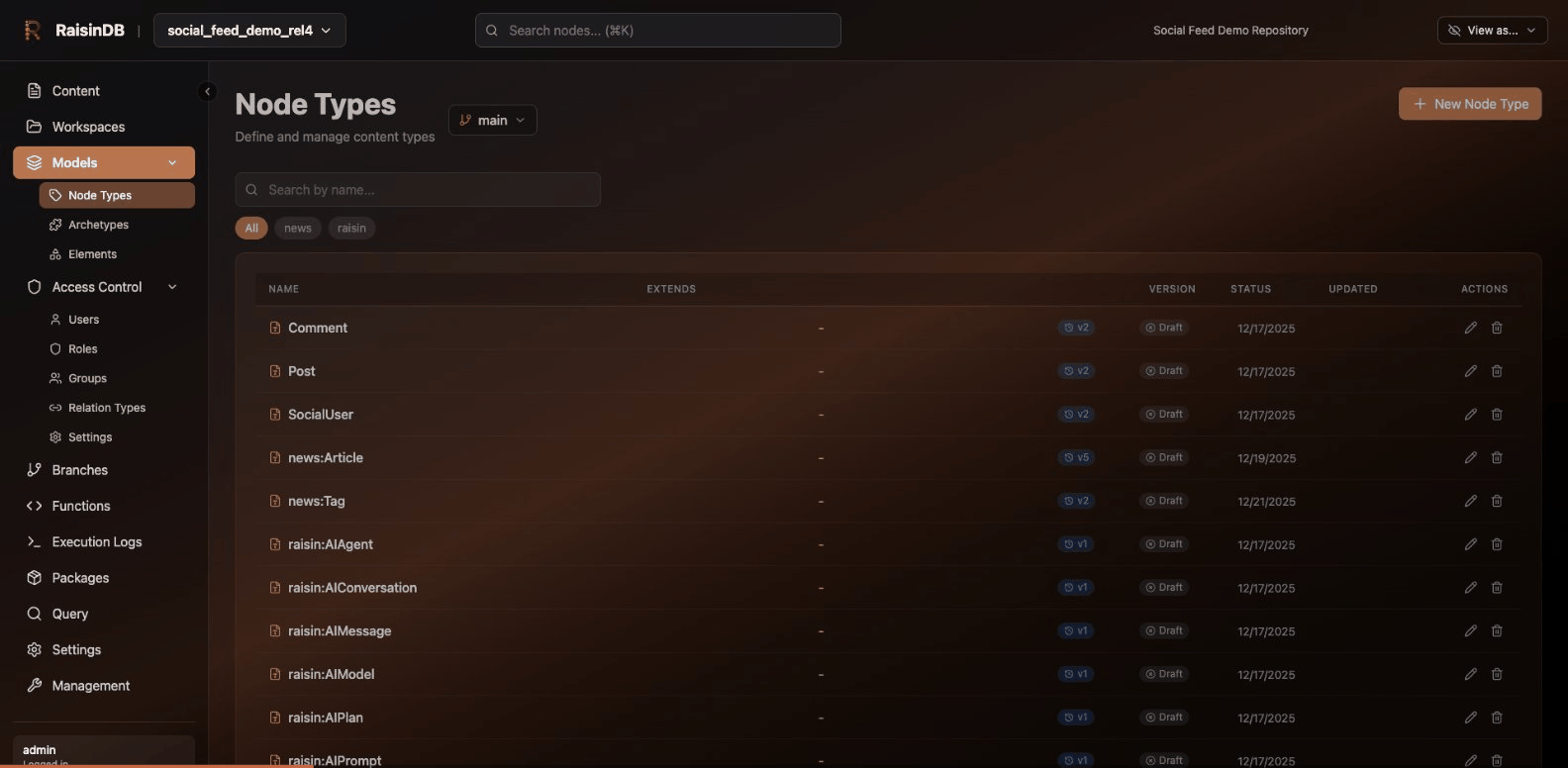
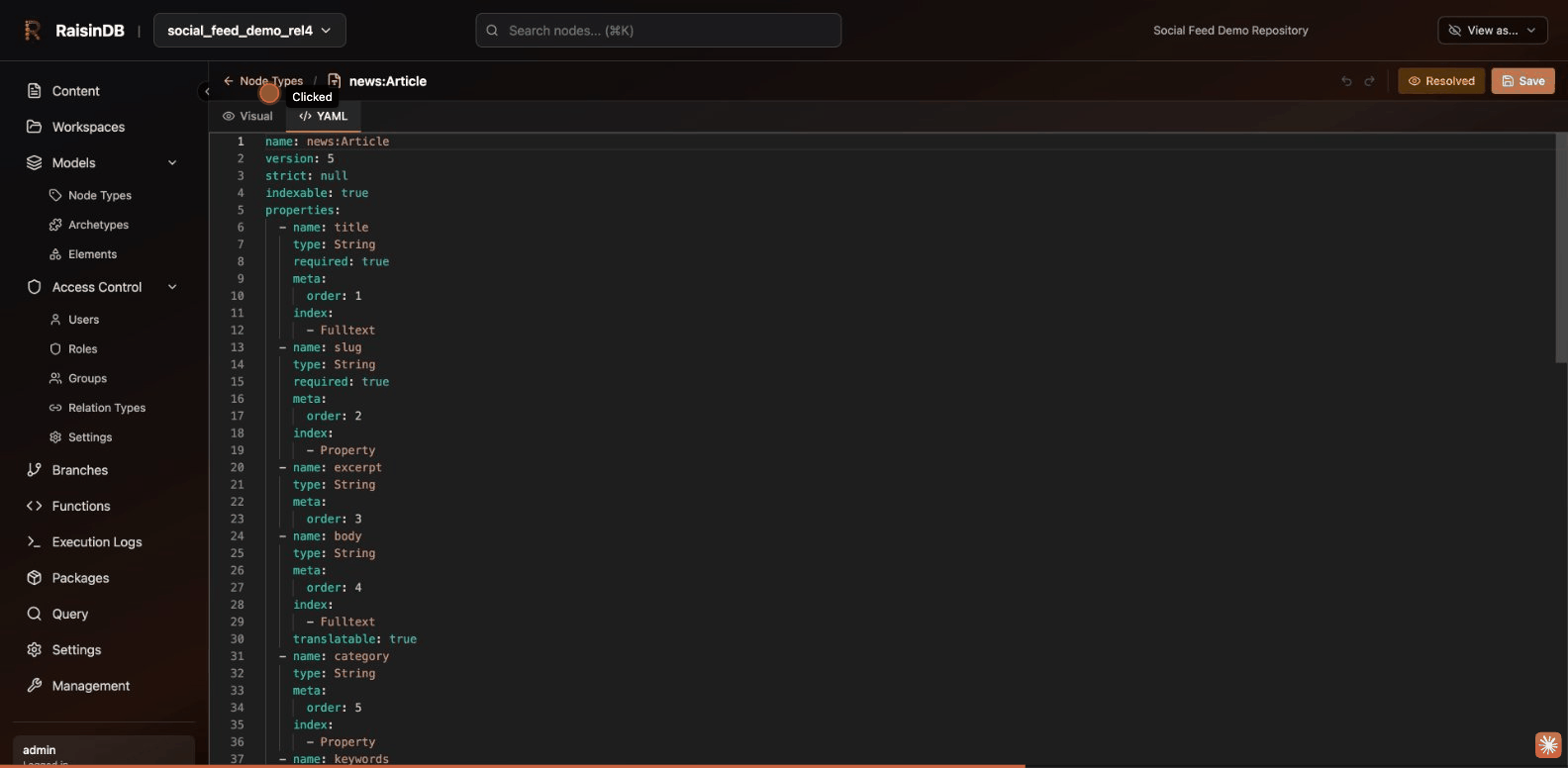
Node Types, Mixins, Archetypes and Elements each have a list page and an editor.
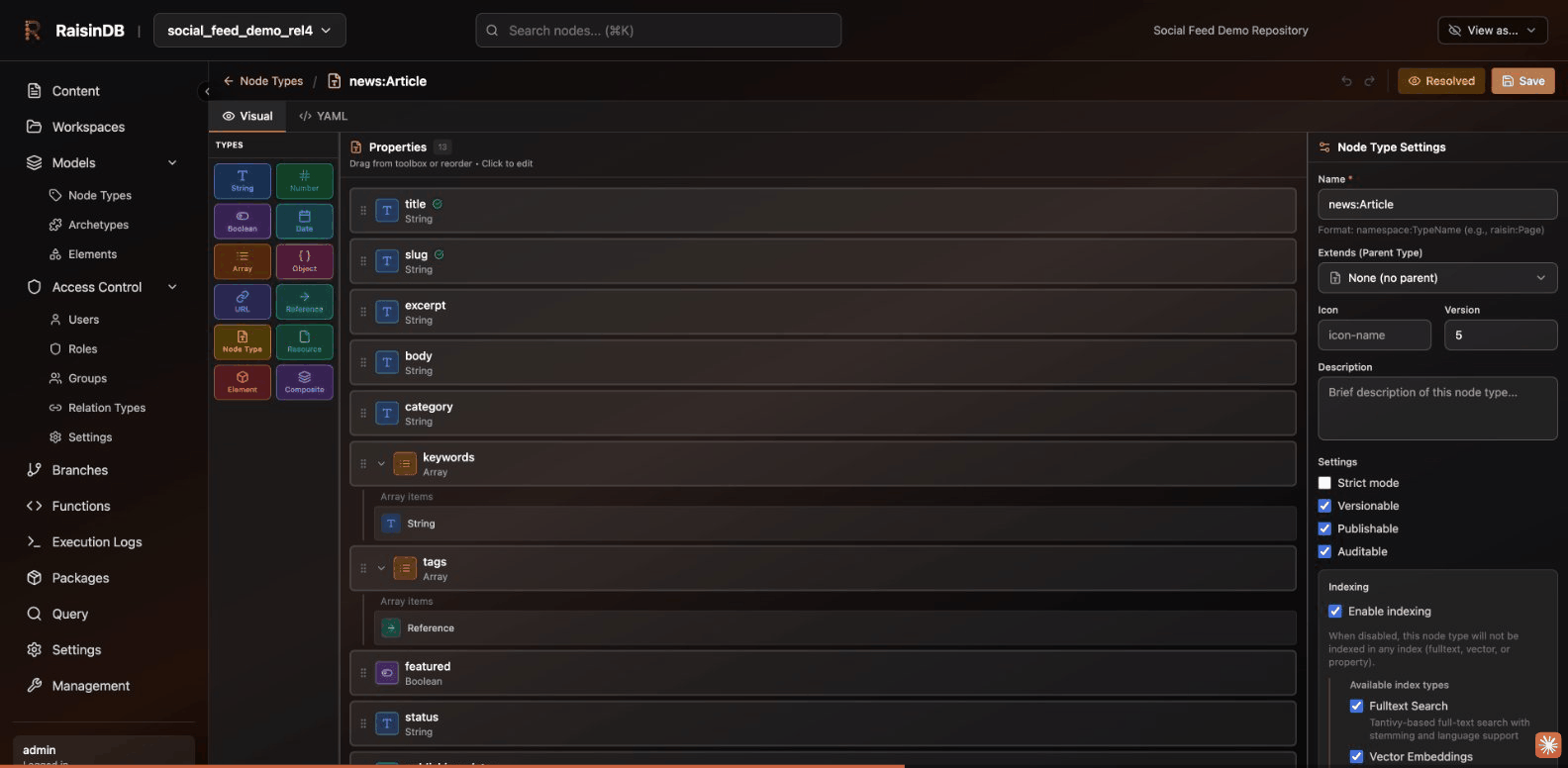
The editor has two tabs. The visual tab is a builder with a type palette, drag-and-drop ordering of properties, a settings panel for the type's metadata and flags, and undo/redo. The YAML tab shows the same definition as text for direct editing; switching tabs converts between the two, and a parse error is shown instead of switching.
Access Control
Users, Roles, Groups, Relation Types and a settings page for the repository's
access-control configuration. Users and roles are nodes in the
raisin:access_control workspace, so the pages are tree views with type-aware
editors. Personal API keys are managed under your profile in the Management
area (see below).
Branches
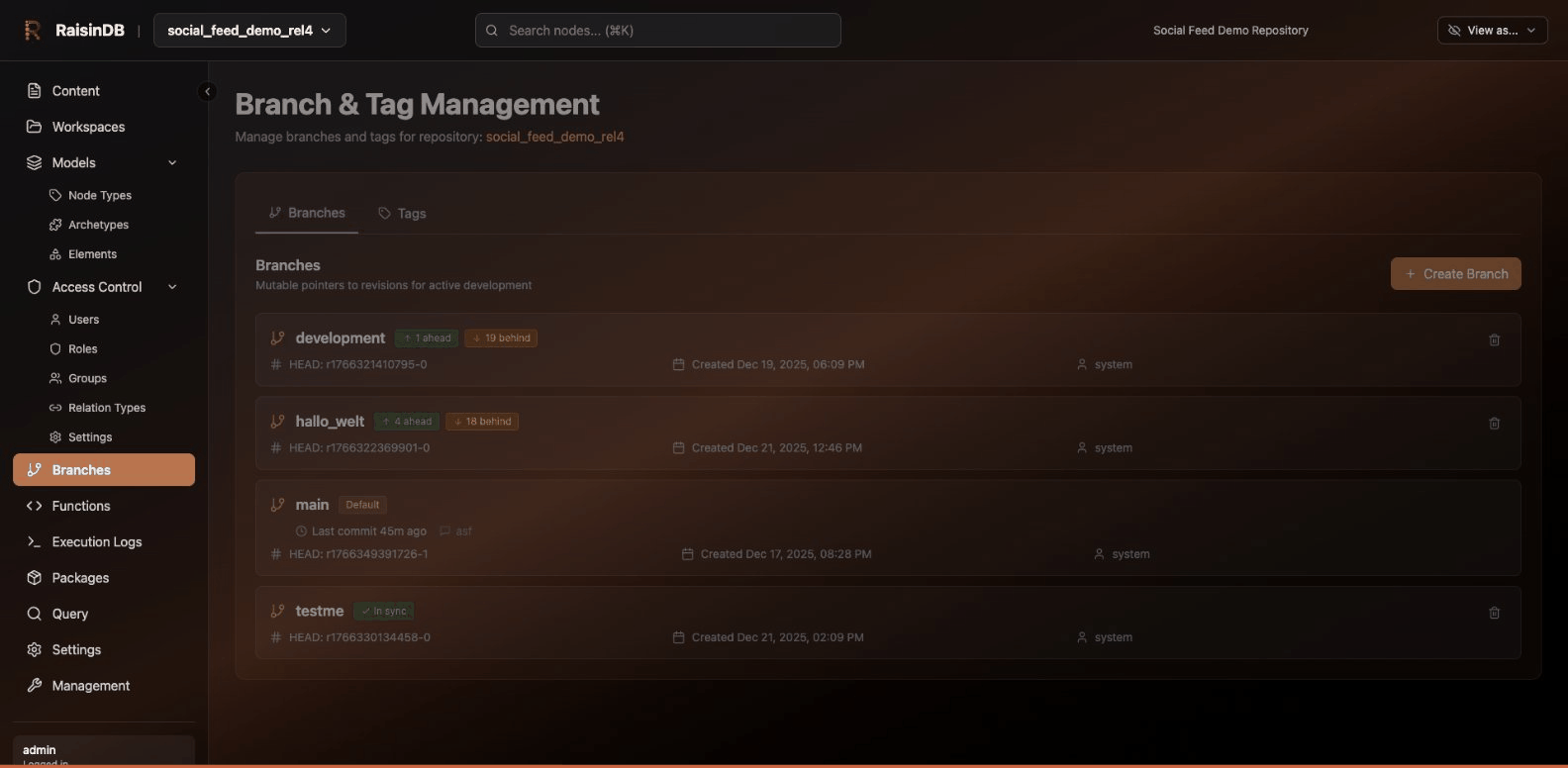
The Branches page lists branches and tags, shows how far each branch has diverged from its base, and offers create, delete, merge and tag actions.
The merge dialog previews the changes a merge brings across, grouped as Added, Modified, Reordered and Deleted, so reordered siblings are visible before you merge. When a merge reports conflicts, a resolution panel lets you choose a side per node (and per translation locale) and commit the result.
Functions
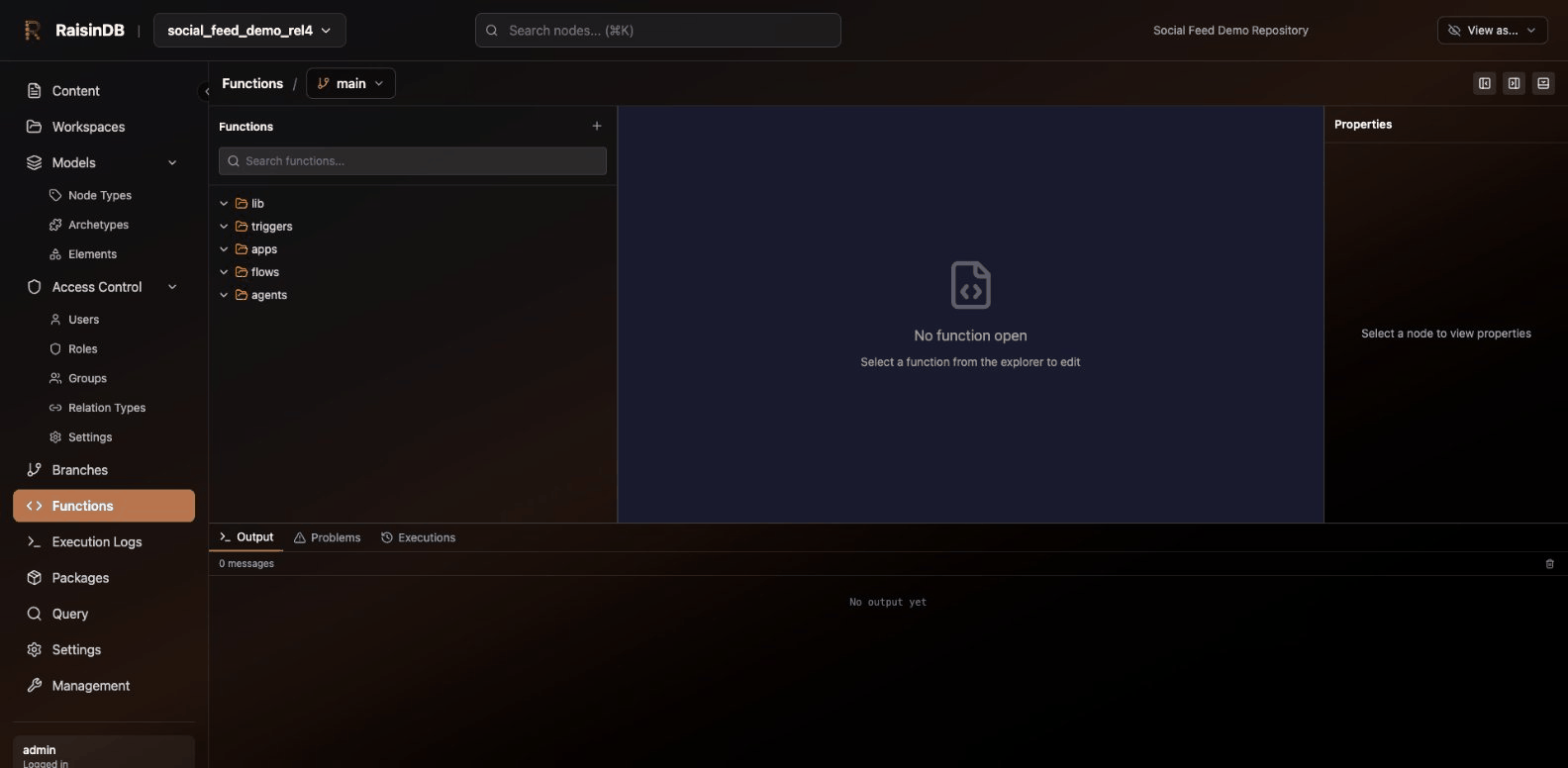
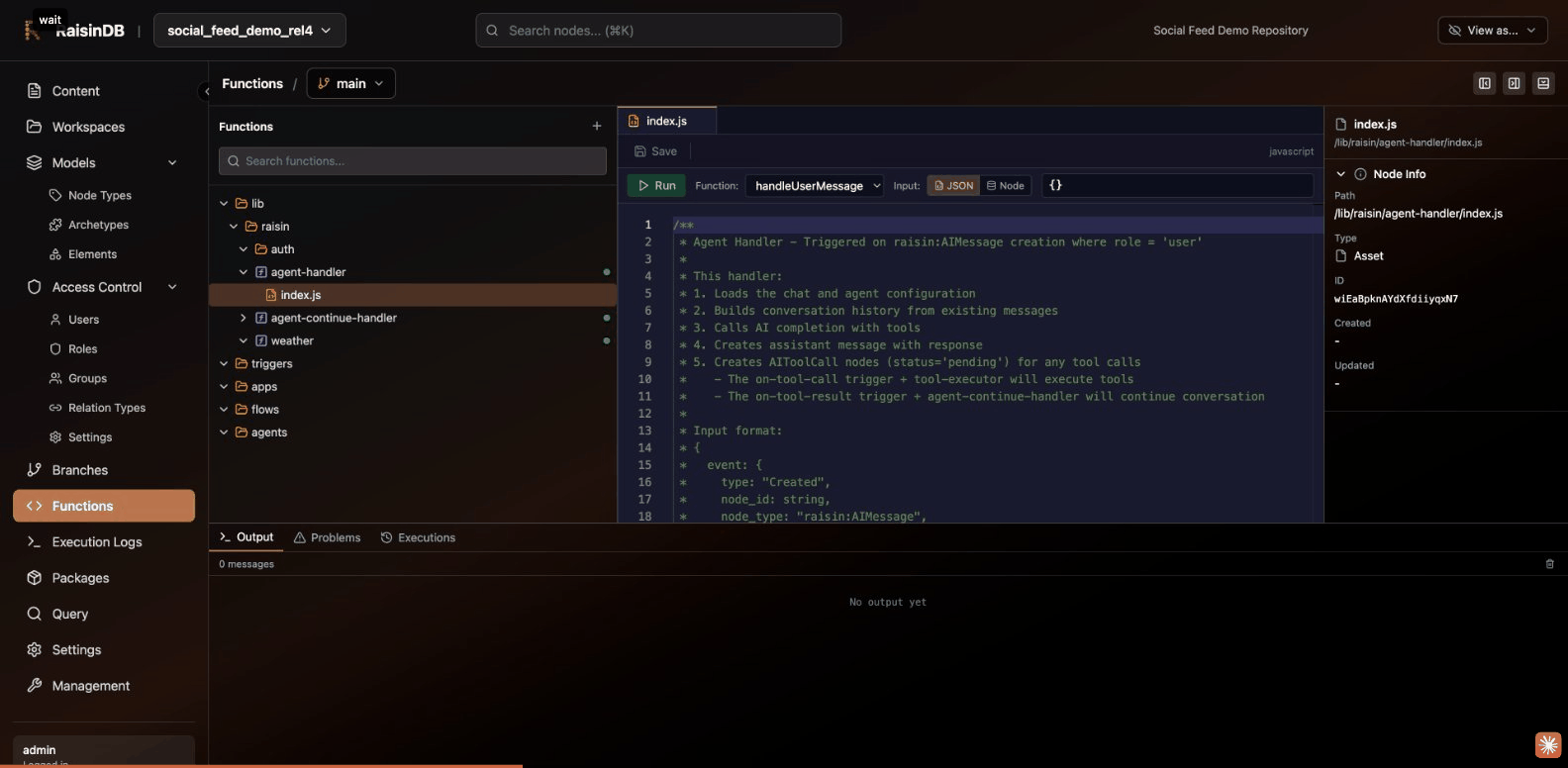
The Functions page is an IDE for the functions workspace: a file explorer on
the left, editors for functions, triggers, flows and agents, and an output area
with Output and Problems tabs.
Open a function to edit its code, set its input in the run bar and execute it; the result and any problems appear below. WebAssembly functions show their artifact's size and hash instead of source.
Agents
List, create and edit AI agents, open a test chat against an agent, and inspect conversation traces.
Packages
The package list shows every uploaded and built-in package with its version,
install status and, for packages that ship a .raisin-sync.yaml, a sync-policy
badge.
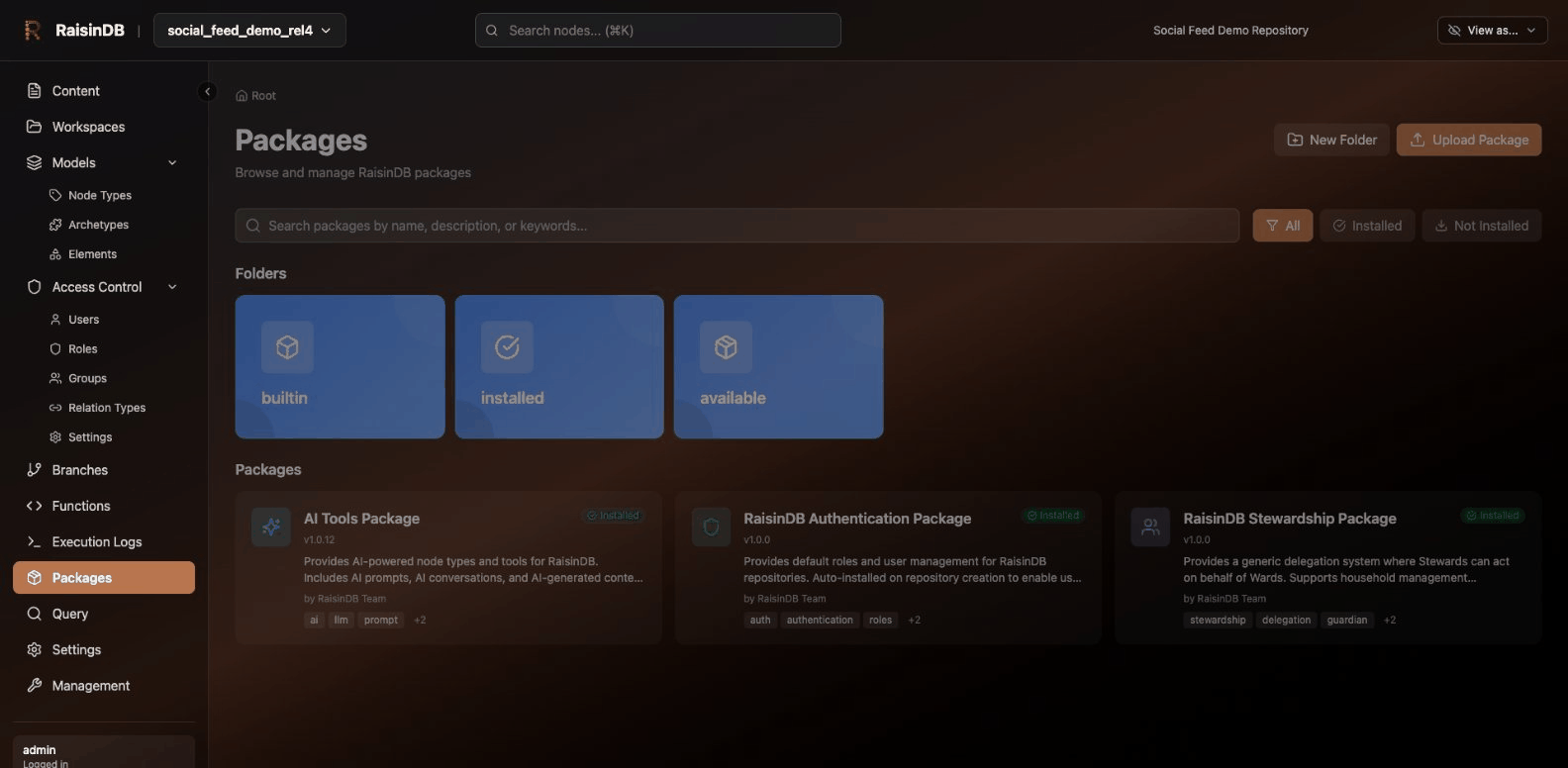
From here you can upload a .rap, create a new package from selected content,
and open a package to:
- Install, or reinstall in
sync,skiporoverwritemode (a split button) - Preview an install as a dry run before committing to it
- Browse the archive's files
- View sync status against the installed content, and export the package
See Installing Packages.
Integrations, MCP Connections, Mounts
Integrations lists the installed adapter packages (category integrations)
and the connections configured for them. MCP Connections manages outbound Model Context
Protocol servers. Mounts creates and monitors virtual mounts that sync external
data into a workspace path.
Secrets and Email
Secrets lists the branch's encrypted secrets and lets you add, rotate and delete them; values are never displayed. Email configures the repository's outgoing mail provider.
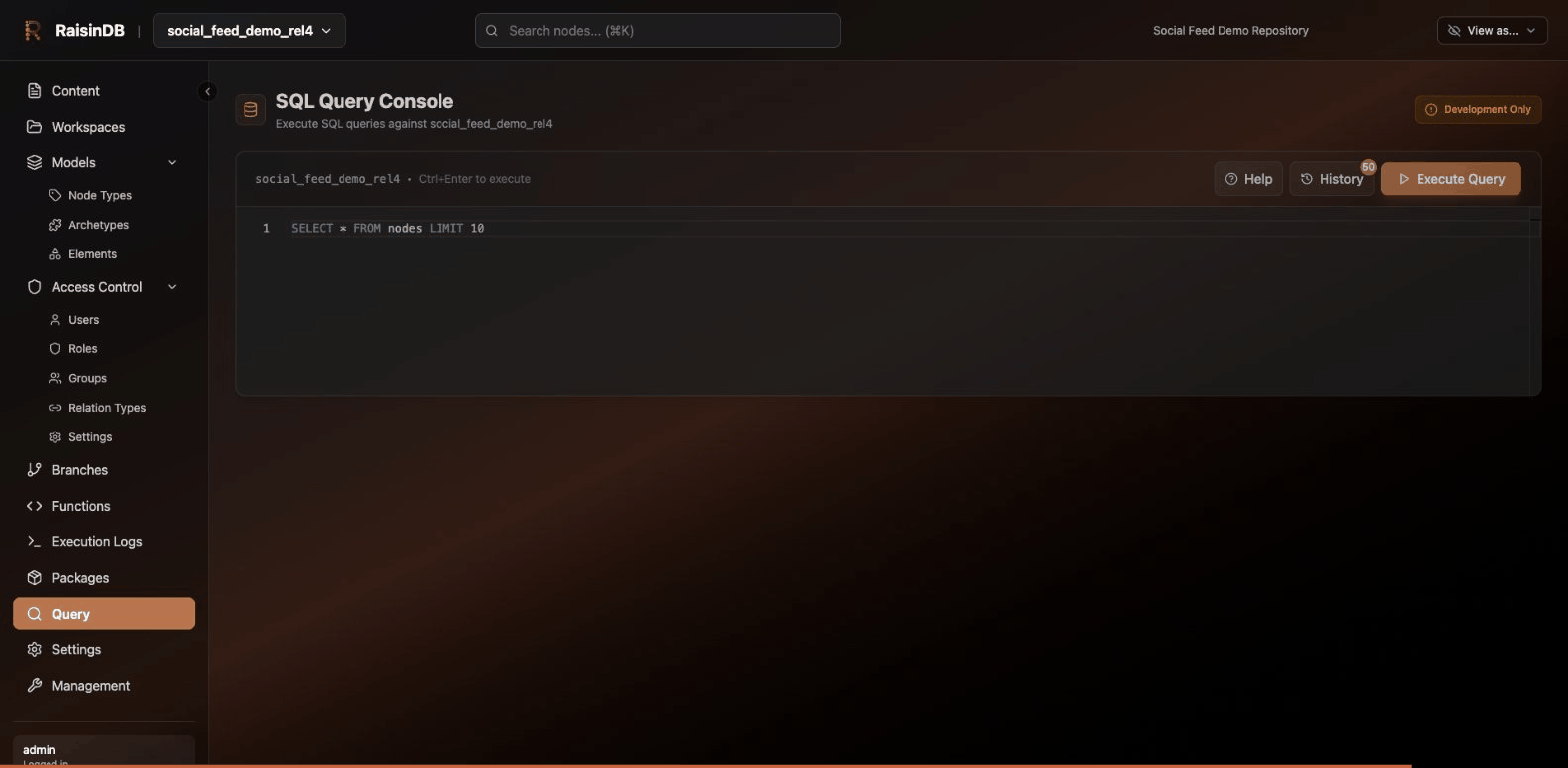
SQL Query
Run SQL against the repository, with query history kept in the browser and a
visual plan view for EXPLAIN statements.
Logs, Flows, Inbox, Settings
Execution logs of functions and triggers, running workflow instances, the repository inbox of human tasks, and repository settings (general, AI, and system-definition updates).
Management
The Management area, reachable from the top-level navigation, holds
tenant-wide pages: execution logs, flow monitor, database maintenance
(fulltext and vector index health and rebuilds), background jobs, AI
and auth settings, admin users, identity users and your own profile with
personal API keys. In dev mode on the default tenant it also shows a server
dashboard and a RocksDB page.
Keyboard shortcuts
| Shortcut | Where | Action |
|---|---|---|
Cmd+K / Ctrl+K | Everywhere | Focus the global search bar |
Cmd+Enter / Ctrl+Enter | SQL Query | Run the query |
Cmd+Z / Ctrl+Z | Model editors | Undo |
Cmd+S / Ctrl+S | Function, trigger, flow and agent editors | Save |